I have read an article for creating number sequence in
existing and new module of AX 2012, written by a friend Amir nazim also lso there is a white paper published by microsoft for the developers.
Amir's
article link
Showing posts with label ax2012. Show all posts
Showing posts with label ax2012. Show all posts
Sunday, February 5, 2012

Saturday, February 4, 2012
How to use the regular expression to validate the name in X++ AX
How to use the regular expression to validate the name
public bool validateName(str _name)
{
// verify that Name doesn’t contain bad
special character like <>:”/\|?*
public bool validateName(str _name)
{
System.Text.RegularExpressions.Match
regExMatch;
bool isValid;
// other characters used in the regular
expression are part of regex syntax.
regExMatch
= System.Text.RegularExpressions.Regex::Match(_name,
@’^[^<>:"/\\|?*]*$’);
// return true if name matches the criteria
otherwise return false
isValid
= regExMatch.get_Success();
return
isValid;
}
Data model of the dimension in AX 2012
In
this post I will describes the data model of the ledger dimensions and we will
a scenarios that how the data is stored on the these tables

Scenario: How an offset account (10110-D10-CC2) in the Lines Journal saved in the dimension.
Segmented control works with the DimensionStorage
class to create the combination
So; we break apart the combination into each
structure[10110 - D1] [CC2}. We first save the Account Structure portion of the
combination. Then we save the Account/Advanced Rule structure portion (as
there could be multiples added thru multiple rules). In the end, this is what
that combination will look like across all 4 tables shown in the combination
storage block in the Data model bound to the LedgerDimension.
 1. An
Segmented entry
control will look like this
1. An
Segmented entry
control will look like this
2.
As account structure configure there are
2 segments that must be filled.
3.
Type 10110 and tabit looks like
this:10110 -
4.
Type D1 in the second segment and tab
5.
As tab press we pick up the fact
that a rule is attached and a 3rd dimension must be added to the combinationso
it looks like this:10110 - D1 -
6.
Now the user enters CC2and tabs
from the control 10110 - D1 - CC2
DimensionAttributeValueCombination:
DisplayValue: "10110 - D1 – CC2"
RecId: 400
RecId: 400
DimensionAttributeValueGroupCombination:
DimensionAttributeValueCombination:
400
DimensionAttributeValueGroup: 500
RecID: 201
DimensionAttributeValueGroup: 500
RecID: 201
DimensionAttributeValueGroupCombination:
DimensionAttributeValueCombination: 400
DimensionAttributeValueGroup: 501
RecID: 202
DimensionAttributeValueGroup:
DimensionHierarchy: AccountStructure(MA+DEPT)
RecID: 500
RecID: 500
DimensionAttributeValueGroup:
DimensionHierarchy: AdavancedRule (CC)
RecID: 501
RecID: 501
DimensionAttributeLevelValue:
DimensionAttributeValueGroup: 500
Ordinal: 1
DimensionAttributeValue->10110
RecId: 601
DimensionAttributeLevelValue:
DimensionAttributeValueGroup: 500
Ordinal: 2
DimensionAttributeValue->D1
RecId: 602
DimensionAttributeLevelValue:
DimensionAttributeValueGroup: 501
Ordinal: 1
DimensionAttributeValue->CC2
RecId: 602
DimensionAttributeValueGroup: 500
Ordinal: 1
DimensionAttributeValue->10110
RecId: 601
DimensionAttributeLevelValue:
DimensionAttributeValueGroup: 500
Ordinal: 2
DimensionAttributeValue->D1
RecId: 602
DimensionAttributeLevelValue:
DimensionAttributeValueGroup: 501
Ordinal: 1
DimensionAttributeValue->CC2
RecId: 602
To insert: [10110 - D1] [CC2] we need to insert above
all records as summarized below.
·
1 record in DAVC
2 Records in DAVGC (to link the full combination to each sub-group)
2 Records in DAVGC (to link the full combination to each sub-group)
·
2 records in DAVG (one for each
grouping)
·
3 records in DALV (one for each
segment)
configure Account structure and advanced rules in ax 2012
This post is covering the following topics
and the target audience includes AX Administrator, functional consultant and developers/testers.
GL > Setup > chart of accounts > chart of accounts


·
Account Structure Configuration
·
Account Structure Configuration effect on GL
·
Advanced Rule application on Account Structure
·
Advanced rule effect on GL
and the target audience includes AX Administrator, functional consultant and developers/testers.
Configure Account Structure
GL > Setup > chart of accounts > chart of accounts

To
Configure Account Structure Click on the configure account structure as shown
in the above snap shot.

Click on
Activate button to active this Account structure,
Click Yes
to Activate this Account structure

Effect on GL

Click on
Lines Button -> Select the Offset
Account from account structure(MA +Cost center)

Configure Advanced Rules
GL > Setup > chart of accounts > Advanced rule structure

GL >
Setup > chart of accounts > Configure Account structure

Click
Advanced rule to open below Advanced rule form
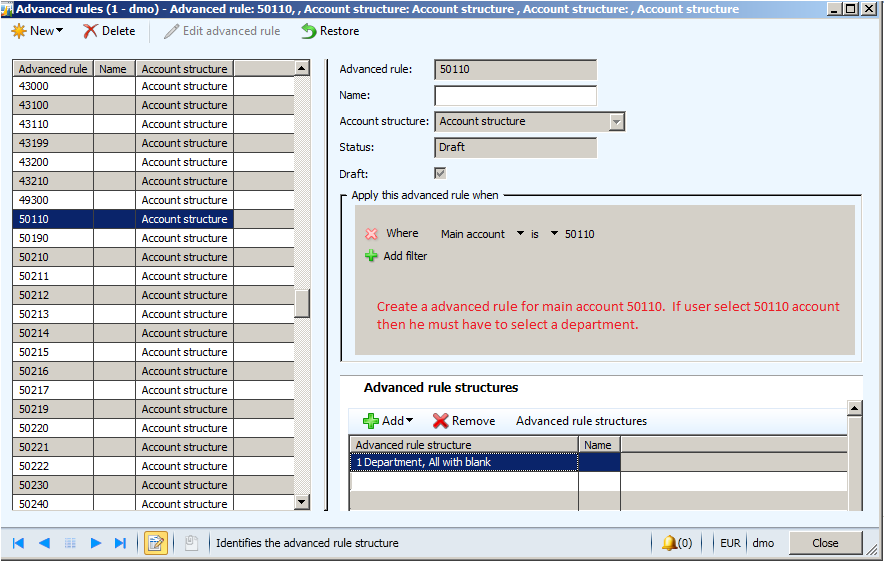
Advanced Rules Effect on GL
GL > Journal > General Journal Click on Lines Button -> Select the Offset Account from account structure + Advanced rule

As we
have created an advanced rule for main account 50110 i.e User must have to
select department if he selects main account 50110

Sunday, January 29, 2012
type of users in Dynamics AX 2012
Question: How
many type of users are in Dynamics AX 2012 and what are their duties?
Task User:
Users access the system to:
Answer: There are
four types of user in AX 2012 (I have copy the matter from a link)
1.
Enterprise
2.
Functional
3.
Task
4.
Self Server
Enterprise User:
·
Unrestrictive access to setup, administer all
parameters and functional processes across the enterprise. Key Roles whose work
impacts multiple users’ activities or tasks such as budgeting, forecasting,
planning or scheduling
·
Manage complete cross organizational activities
and business including: Legal, Financial, Payroll, Compensation & Benefits
and IT
·
Setting up and Defining Organizations, Business
Unit, departments, divisions, Positions, and employee Jobs
·
Access to all Manufacturing Roles and functions
excluding Shop Floor Control and Quality Management
·
Managing cross organizational processes
·
Approving professional user processes
Functional Users:
·
Manage a set of activities in the process to
create, fabricate, sell, deliver, or support the product or the service sold by
their company.
·
Manage a shop floor within a production or
manufacturing cycle.
·
Manage a set of projects and related services
incl. the management of relevant resources.
·
Manage HR cycles: Recruitment, Trainings, and
On/Off boarding of employees.
·
Manage budget transfers and requests pertaining
to his / her operational department, division, or unit.
·
Create applicants / employee master data records;
create a job or a position requisition within the organization.
·
Raise invoices pertaining to their clients.
·
Approve Vendor invoices or voucher for rendered
services.
·
Create and Manage master data records pertaining
to their Customers, Vendors, as well as their product inventory or catalog.
·
Approver of Self Serve or Task Users.
Functional
Users do not and cannot perform (these are completed by Enterprise Users):
·
ERP system setup, Data base setup or reports
customizations.
·
Functions related to setting up (System
Configuration) projects, productions, services or financial parameters
(Product, Inventory, projects, production, route, service grouping, etc.)
·
financial Transactions related to Employee
Payroll, Customer and vendor settlements, payments, credits, checks, cash
dispenses, all Accounting functions & activities
·
transaction spanning cross Business Units or
Legal entities processes: Budgeting and Resourcing
Task User:
Users access the system to:
·
Enter billable time (Project Activities,
Production card, etc.)
·
Billable expenses (project and other types)
·
Performance management and goal setting, annual
reviews, etc.
Self
Serve User:
·
Employee Self Serve Discrete Scenarios (Payroll
Clock In/Out, Expense Report, Personal Data, Time & Attendance, Personal
Service Requisitions
Install EP in Dynamics AX 2012
Q: How to install the Enterprise portal in AX 2012
Ans: Use the following topics to help you install Enterprise Portal in AX 2012.
Checklists for deploying Enterprise Portal sites
Install Enterprise Portal (EP)
Install Enterprise Portal Help content
Install multiple Enterprise Portals on the same server
Set up Enterprise Portal and Role Centers
Ans: Use the following topics to help you install Enterprise Portal in AX 2012.
Checklists for deploying Enterprise Portal sites
Install Enterprise Portal (EP)
Install Enterprise Portal Help content
Install multiple Enterprise Portals on the same server
Set up Enterprise Portal and Role Centers
Upgrade from AX 2009 to 2012
Question: Is there any guide line to upgrade the dynamics Ax 2009 to 2012
Ans: Microsoft written a document that provided the standard steps to upgrade AX 2009 to Ax 2012
Ans: Microsoft written a document that provided the standard steps to upgrade AX 2009 to Ax 2012
That includes the following topics
- What's New: Upgrade
- Supported upgrade paths
- Hardware and software requirements
- Best practices for upgrade
The link shared by Ahmed El-Sayed
Replacement key error in Excel Add ins in AX
Q: In AX2012, while trying to import data into the table ledgerJournalTrans using Excel add-in, we're getting this error, any solution for that?

Ans:
Belows tables should be modified to set the Replacement key property in order to resolve this error

Ans:
You have to specify the replacement key on the foriegn key tables of LedgerJournalTrans, basically Aif/web service displays the user friend values to the user in excel, i.e. if you want to sent the vendTransId in the LedgerJournalTrans, the user dont know about the Id, but he knows about the user friendly columns i.e. vendAccount and other transaction attributes, so it needs a replacement key that replace the foriegn key (recId) to user freindly columns.
Replacement key (pointing to an index, it can be equal to a clustered index)is a key that have columns identifying the unique record.
- VendTrans
- CustTrans
- Tax1099BoxDetail
- ReasonTableRef
- VendBankAccount
- CustBankAccount
- BudgetSource
Thursday, January 26, 2012
lookup in AX
In the dynamics ax 2012, there
are different ways to fill the combo box/drop down list
This above method of lookup was
heavily used in AX 2009, and it also used in the AX 2012 when there isn’t any data
source specified in the form (i.e. Dialog Form) and the StringEdit control used
for the lookup
How to create a simple lookup
The SysTableLookup class is provided by the standard application to allow
programmers to easily create their own lookup forms, in code.
The basic steps to using this class are as follows:- Create the sysTableLookup object
- Create the query to select the lookup data
- Add the fields shown on the lookup
- Performs the lookup
|
client static
void lookup<TableName> (FormStringControl
_ctrl)
{
SysTableLookup sysTableLookup = SysTableLookup::newParameters(tableNum(<tableName>),_ctrl);
Query query = new Query();
// create
the query for the lookup
QueryBuildDataSource queryBuildDataSource =
query.addDataSource(tableNum(<tableName>));
// Add
fields that will be shown in the lookup as columns
sysTableLookup.addLookupfield(fieldNum(<tableName>,<FeildName1>));
sysTableLookup.addLookupfield(fieldNum(<tableName>,<FeildName2>));
//Add
the query to the lookup form
sysTableLookup.parmQuery(query);
// Perform the lookup
sysTableLookup.performFormLookup();
}
|
How to create a simple lookup Reference
The SysReferenceTableLookup class is used
to construct lookup forms for reference controls.
- Create the SysReferenceTableLookup object
- Create the query which will be used to select the lookup data
- Add the fields which will be shown on the lookup
- Perform the lookup
|
public static
client <tableName> lookup<tableName>(
FormReferenceControl _formReferenceControl)
{
Query query;
SysReferenceTableLookup
referenceLookup;
if
(_formReferenceControl == null)
{
throw
error(Error::missingParameter(null));
}
referenceLookup =
SysReferenceTableLookup::newParameters(
tableNum(<tableName>),
_formReferenceControl,
true);
// create
the query for the lookup form
query.addDataSource(tableNum(<tableName>));
// Add
fields that will be shown in the lookup form as columns
referenceLookup.addLookupfield(fieldNum(<tableName>,<FeildName1>));
referenceLookup.addLookupfield(fieldNum(<tableName>,<FeildName2>));
// Add the
query to the lookup form
referenceLookup.parmQuery(query);
// Perform
the lookup and return the selected record
return
referenceLookup.performFormLookup() as
<tableName>;
}
|
Subscribe to:
Comments (Atom)